A dual monitor setup can genuinely change how you work from home — but without a thoughtful layout, it quickly becomes a tangle of cables, mismatched heights, and visual clutter that makes it hard to focus. Getting the ergonomics right matters just as much as the aesthetics. This guide walks through everything from desk selection and monitor placement to cable management and the small styling details that make a home office feel intentional rather than improvised.
Start With a Clear Vision
Before buying anything, it helps to define what kind of work happens at this desk. A video editor needs different monitor positioning than someone on back-to-back video calls. A writer might prioritize a calmer, less gear-heavy aesthetic. These distinctions shape every decision that follows.
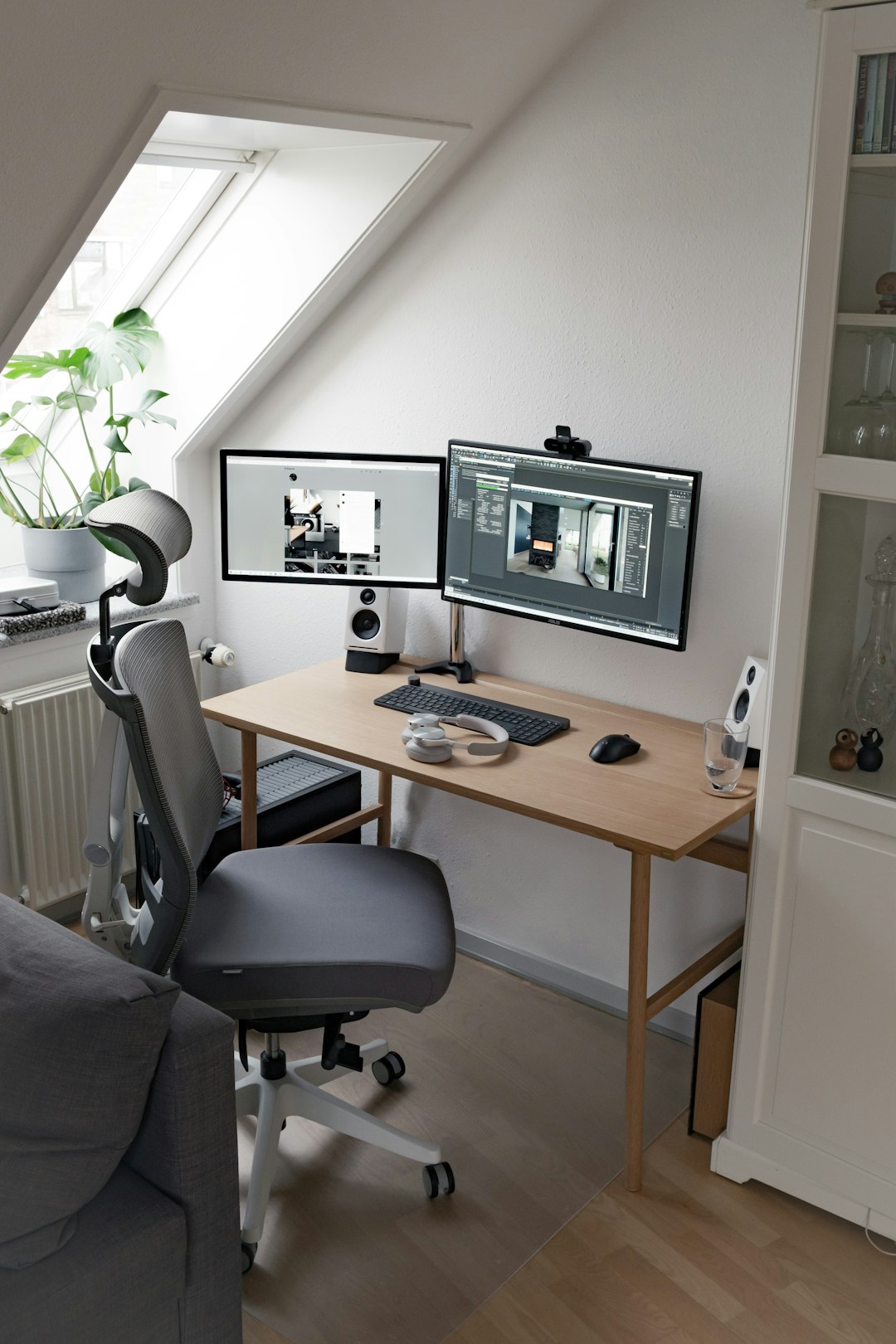
Think about the room itself too. A north-facing room with little natural light calls for a completely different lighting strategy than a sun-drenched corner. Awkward layouts — a desk wedged into an alcove, a sloped ceiling above the workspace — are more common in apartments than design blogs suggest, and they require creative solutions rather than standard advice.
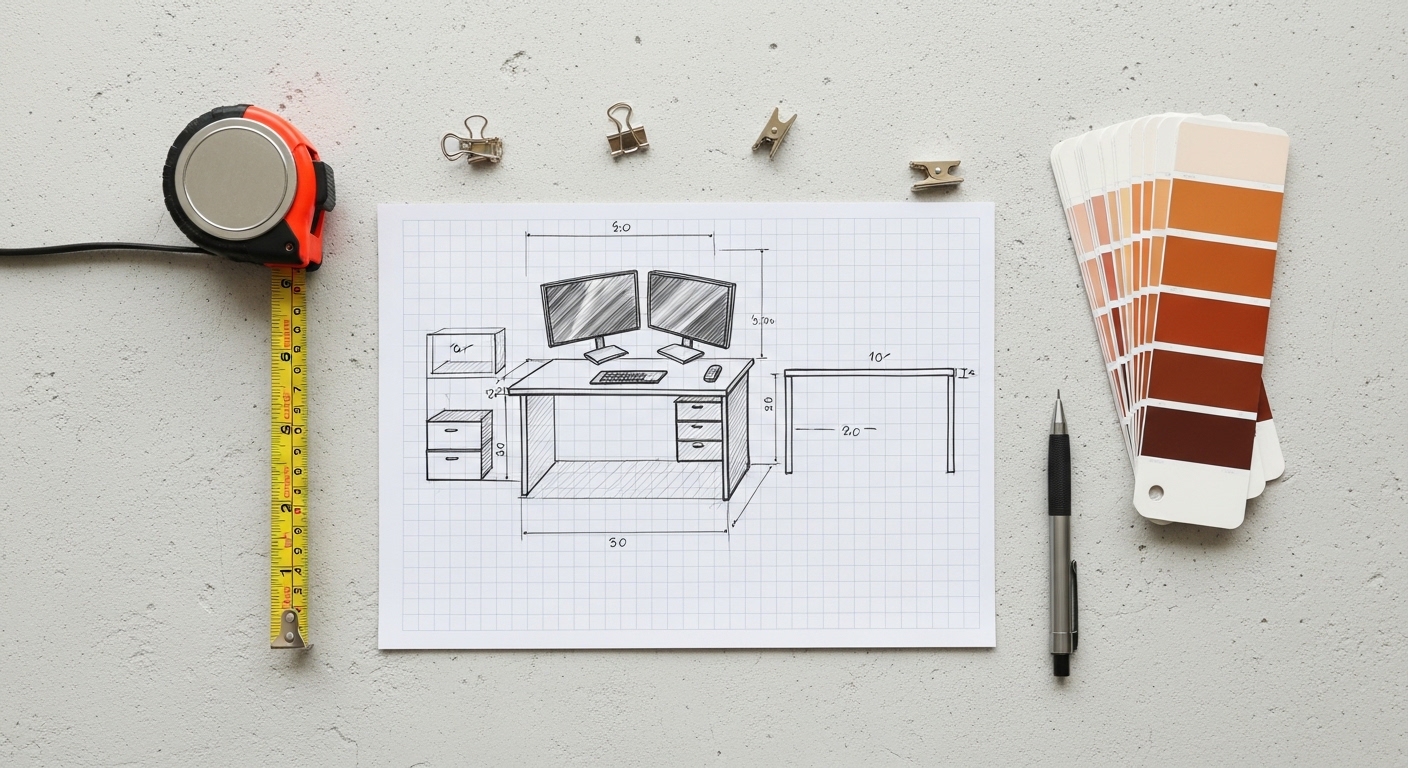
Sketch a rough footprint of the desk area. Note where the power outlets are. Consider whether the wall behind the desk will be visible on video calls. These practical constraints are actually useful — they narrow the options and make decisions easier.
Step-by-Step Transformation Guide
Start with the desk itself. For a dual monitor setup, surface depth matters more than width. A desk that is at least 60cm deep gives monitors enough distance from your eyes — ideally 50 to 70cm. Anything shallower forces the screens too close, which causes eye strain over long sessions.
Monitor placement is the most overlooked ergonomic factor. The top of each screen should sit at or just below eye level. If both monitors are used equally, position them side by side with a slight inward angle — roughly 15 to 20 degrees each — so your neck stays neutral when switching between them. If one screen is primary, center it directly in front of you and offset the secondary monitor to the side.
A dual monitor arm is almost always worth it. It frees up desk surface, allows precise height and tilt adjustments, and makes cable routing far cleaner than individual stands. Most arms clamp to the desk edge without drilling, which is ideal for renters.
Cable management deserves its own moment of attention. A few tools make a significant difference:
- Cable raceways — adhesive channels that run along the desk edge or wall, hiding power and display cables neatly.
- Velcro cable ties — reusable and adjustable, far better than zip ties for a setup that evolves.
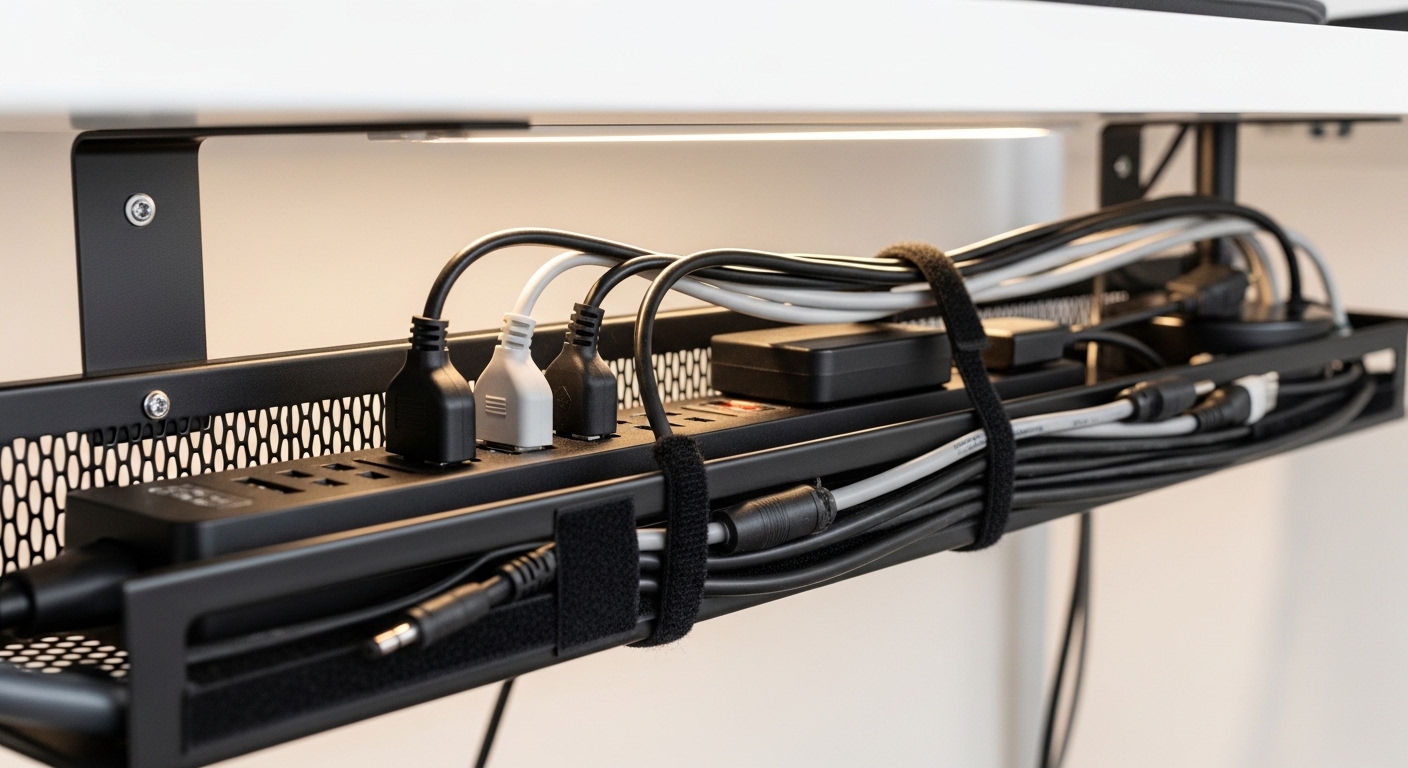
- Under-desk cable trays — mount beneath the surface to hold a power strip and bundle excess cable length out of sight.
- Cable spine sleeves — wrap multiple cables into a single clean column, especially useful for monitor arm cables.
Oddly enough, removing one cable entirely — by switching to a wireless keyboard and mouse — often has more visual impact than any organizer. Less to manage means less visible clutter.
Product Picks & Where to Find Them
These are the categories worth investing in, along with what to look for at each price point. Prices vary by retailer and region and are approximate as of writing.
- Dual monitor arm (e.g., Ergotron LX or similar) — fully adjustable, gas-spring mechanism, supports monitors up to 32 inches; approximately $80–$180 depending on model and retailer.
- Large desk pad / mat — protects the surface and visually anchors the setup; leather or felt options in neutral tones work well; approximately $20–$60.
- Under-desk cable management tray — metal mesh trays are durable and allow airflow; approximately $15–$35.
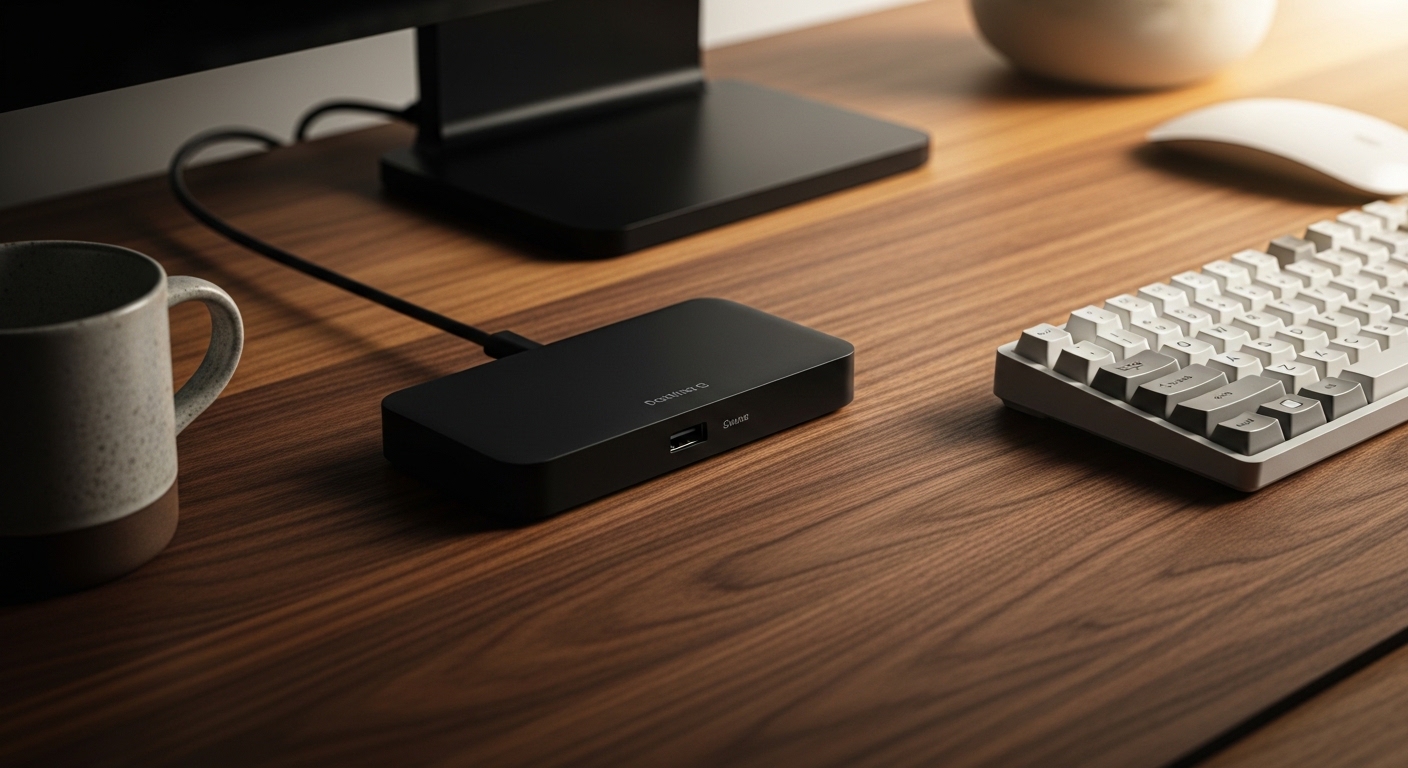
- USB-C hub or docking station — reduces cable clutter by consolidating connections; look for models with pass-through charging; approximately $40–$120.
- Adjustable task lamp with USB port — a lamp with a built-in charging port reduces one more cable run; approximately $25–$80.
- Monitor light bar — mounts on top of the primary monitor, illuminates the desk without screen glare; approximately $30–$90.
"The desk should serve the work, not the other way around. Start with ergonomics, then layer in aesthetics — never the reverse."
Styling Tips From Interior Designers
A dual monitor setup can look clinical if the surrounding decor is ignored. A few intentional additions shift the atmosphere considerably.
Keep the wall behind the desk considered. A single piece of art, a floating shelf with three or four objects, or even a simple paint treatment in a deeper tone creates visual context without competing with the screens. Blank white walls read as unfinished on video calls and in photos.
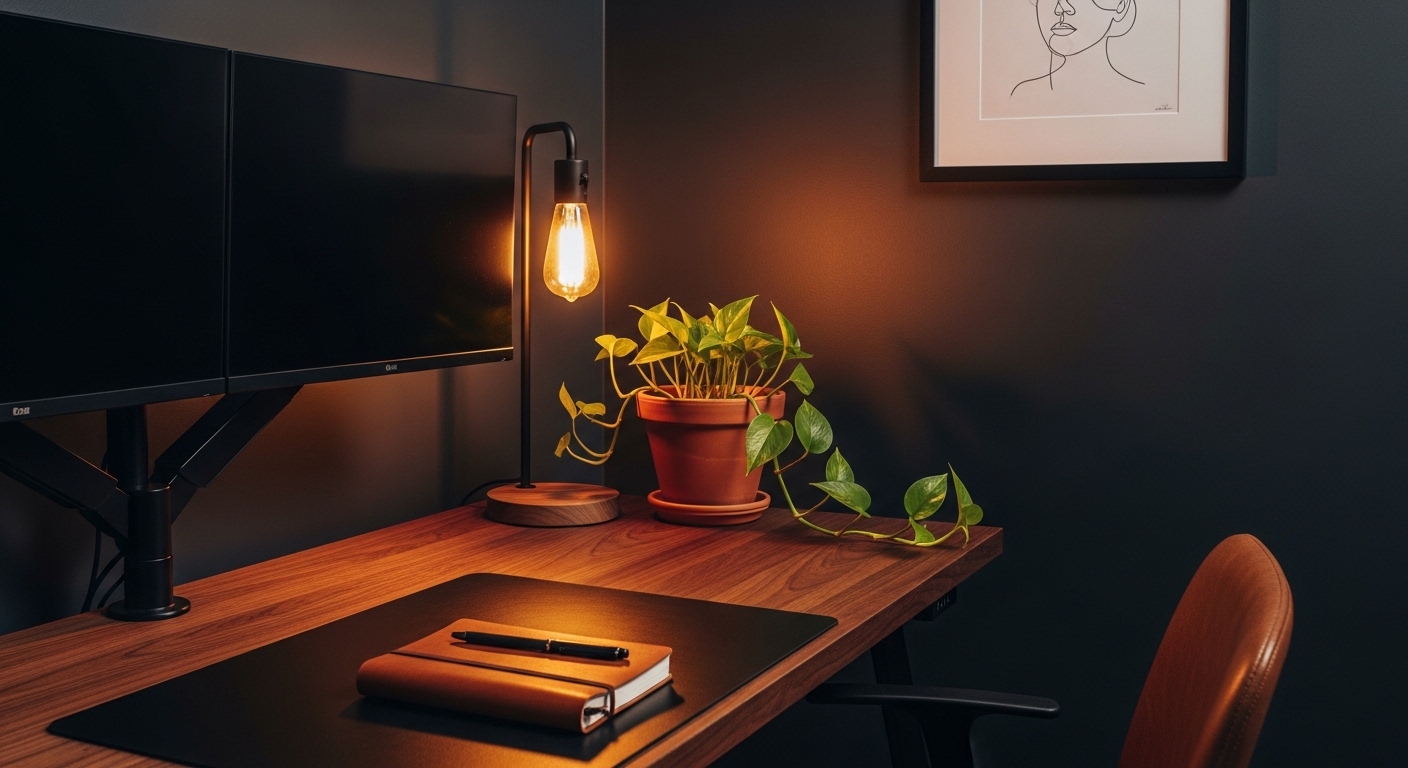
Limit the desk surface to essentials. Small apartments usually need fewer decor pieces than you think — a plant, a notebook, and a good lamp are often enough. Every additional object competes for visual attention and makes the setup feel busier than it is.
Match the monitor arm finish to other metal in the room. If the desk lamp is matte black, a black monitor arm reads as intentional. Mixing chrome, silver, and black finishes in a small space tends to feel accidental rather than curated.
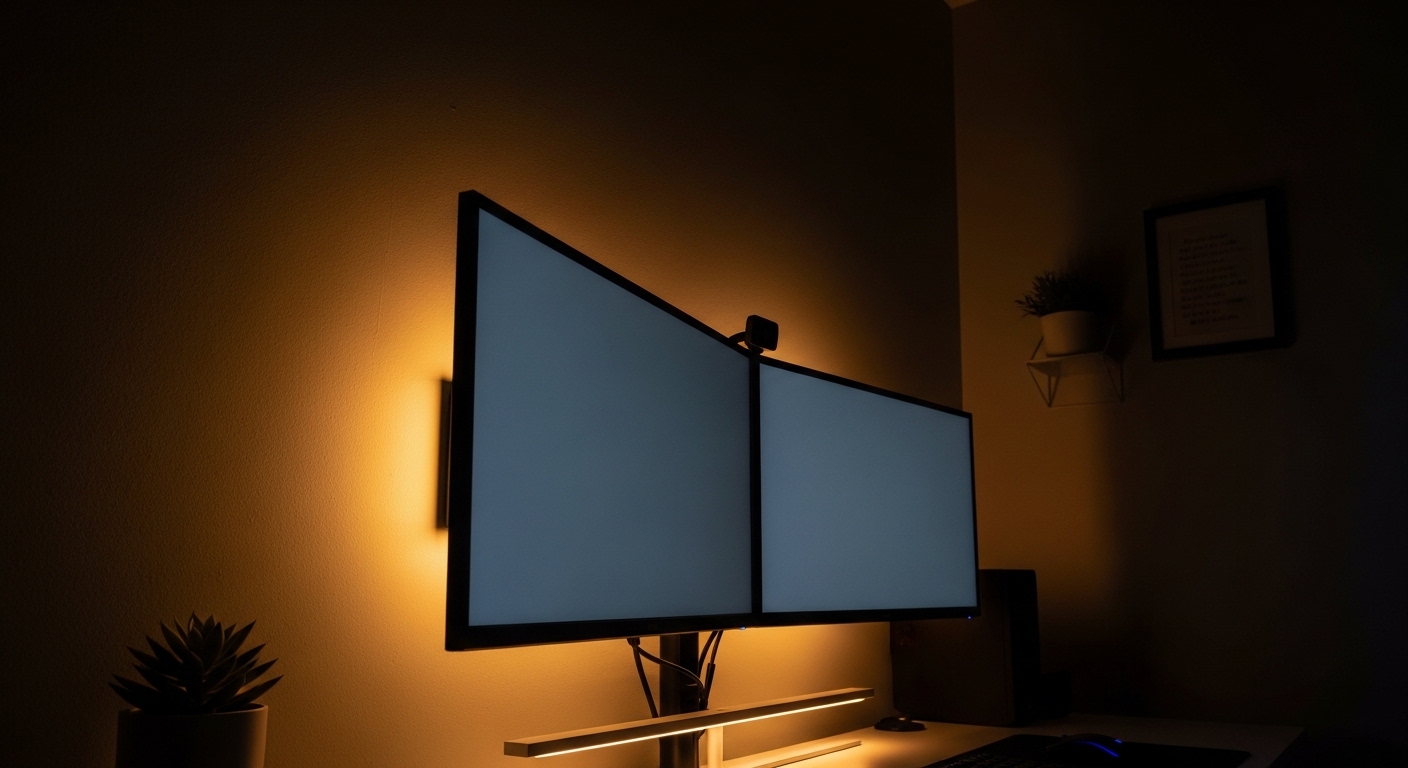
Use lighting in layers. Overhead lighting alone creates harsh shadows on the desk surface. A monitor light bar for task illumination, a small lamp for ambient warmth, and bias lighting behind the monitors (LED strips along the wall) reduces eye strain and adds depth to the space.
Frequently Asked Questions
What desk size works best for two monitors?
A desk that is at least 140cm wide and 60cm deep gives enough room for two monitors side by side, a keyboard, and a small amount of desk space for a notebook or coffee. Wider is better if the room allows it — 160cm is a comfortable working width for most dual monitor setups.
Do I need a monitor arm, or can I use the included stands?
Included stands work, but they take up significant desk real estate and rarely allow the precise height adjustment that ergonomics require. A monitor arm typically raises the screens to the correct eye level, frees up surface space, and makes cable routing much cleaner. For most setups, the upgrade is worth it.
How do I manage cables without drilling into walls?
Adhesive cable raceways attach to walls or desk edges without drilling and can be removed cleanly — a practical solution for renters. Under-desk cable trays that clamp to the desk surface are another renter-friendly option. Combining both usually handles the majority of visible cables.
Is a standing desk worth it for a home office?
For anyone spending more than four hours a day at a desk, a height-adjustable (sit-stand) desk is a meaningful ergonomic investment. Entry-level electric standing desks are available for approximately $300–$500 as of writing, and many are compatible with standard monitor arms. That said, a fixed-height desk at the correct ergonomic height is still far better than a standing desk used incorrectly.
What color scheme works well for a home office with two monitors?
Neutral, low-contrast palettes — warm whites, soft grays, muted greens, or deep charcoals — tend to work well because they do not compete visually with the screen content. Avoid highly saturated accent walls directly behind the monitors, as they can affect color perception during design or editing work.
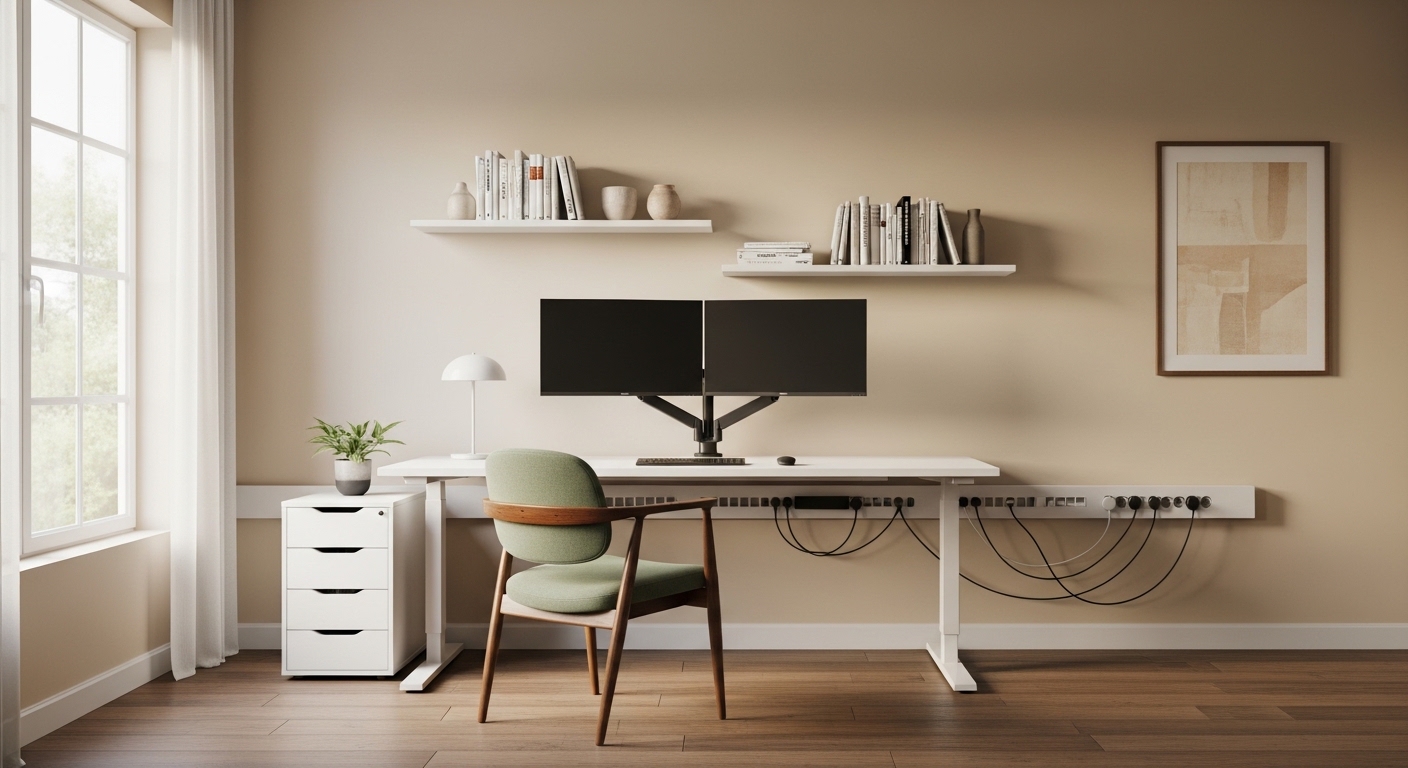
A well-designed home office dual monitor setup is less about having the right gear and more about making deliberate choices — about layout, about what stays on the desk and what does not, about how light moves through the space at different times of day. At first, the setup might feel too minimal. That feeling usually passes once the work starts flowing.
Comments
Post a Comment